
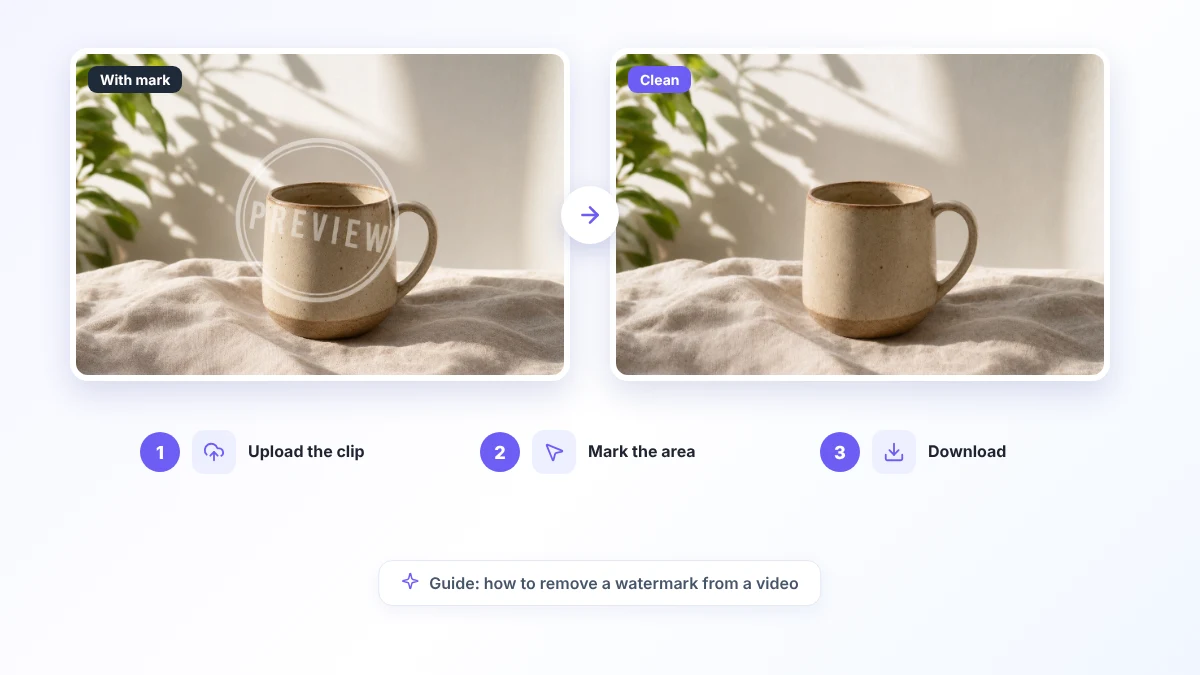
You exported a clip from a free editor and a big logo sits in the corner. Or you lost the original of your own video and only have the version with a stamp on it. Either way, the question is the same: how do you remove a watermark from a video without wrecking the picture?
This guide compares the four methods people actually use, shows where each one breaks, and walks through the AI route step by step. One thing up front, so it does not surprise you later: video has no free trial on ProRemover. Uploading and placing the selection box costs nothing, but processing a clip takes 20 credits. The free trial, which needs no sign-up, no payment and no card, is for single images, and signing in gives you 5 credits.
Why videos carry watermarks
Watermarks do three jobs:
- Ownership. They tell viewers who made the footage and discourage reposting without credit.
- Advertising. Apps and free editors stamp their logo on every export so each shared clip promotes the tool.
- Trial limits. Many paid editors let you export for free, but with a large mark that disappears only after you buy a licence.
Whether you should remove one depends on whose video it is. It is fine when the footage is yours, when you have written permission, or when the work is in the public domain. Otherwise, check the rules where you live first.
The four kinds of video watermark
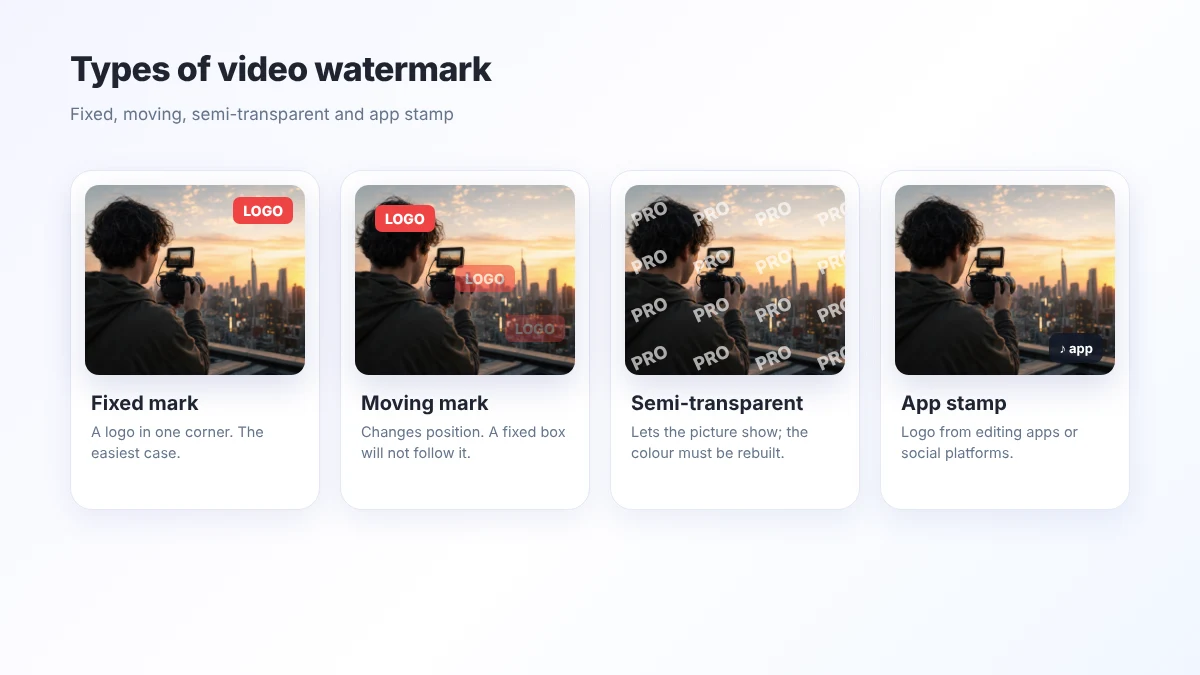
- Fixed marks. A logo that stays in one corner for the whole clip. This is the easy case.
- Moving marks. Common on short-video platforms, where the logo hops between corners every few seconds so it cannot be cropped.
- Semi-transparent marks. You can see the picture through them, but the AI still has to guess the colour underneath.
- Large central marks. They cover the action itself. Every method struggles here.
Crop, cover, blur or AI?
| Method | Effort | Result | Best when |
|---|---|---|---|
| Crop | Very low | You lose part of the frame | The mark sits on the very edge |
| Cover with a box or your own logo | Low | Looks patched | You are adding a replacement logo anyway |
| Blur | Medium | A smudge that draws the eye | Speed matters more than looks |
| AI inpainting | Medium to low | Depends on the background | You want to keep the full frame |
Cropping changes the aspect ratio so the logo falls outside the frame. It is fast and free in any editor, but you throw away picture, and it does nothing for a mark in the middle.
Covering puts a black bar or your own logo on top. Nothing is processed, but the video clearly looks patched.
Blurring hides the text yet leaves a grey blob that viewers notice straight away.
AI inpainting rebuilds the marked area in every frame from the pixels around it. That is what our video watermark remover does. It keeps your framing, but how good the result looks depends on the background behind the mark.

Step by step with ProRemover
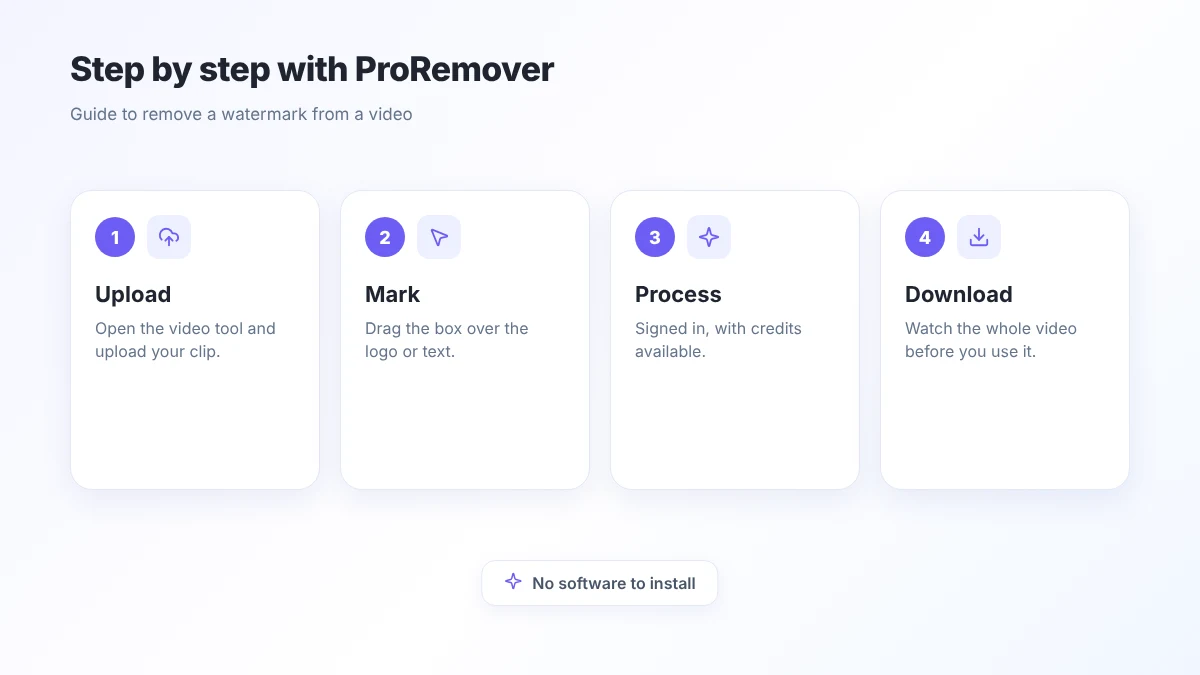
- Upload the clip. Open the video watermark remover and drop in an MP4, MOV or WEBM file of up to 500 MB. One clip at a time.
- Mark the area. Drag the box over the logo or text. The box is fixed and applies to the whole clip.
- Adjust the box. Leave a small margin around the mark and no more. Nothing is charged up to this point.
- Process and download. Processing needs you to be signed in with enough credits (20 per clip). When it finishes, download the file and watch the whole video before you publish it.
Tips for a cleaner result
- Start from the best file you have. More detail in the source means more for the AI to copy from.
- Prefer calm backgrounds. Sky, walls and out-of-focus areas rebuild well. A moving crowd does not.
- Keep the box tight. The bigger the box, the more the AI has to invent in every frame.
- Watch out for moving logos. The box does not follow the mark. If it changes corner, mark each place it appears, and accept that the result will be less clean.
What it cannot do
If the watermark covers most of the screen, or the source is tiny and heavily compressed, no tool will give you a perfect rebuild. Faces, hands and fine print under the mark are the hardest areas, and flicker between frames can appear even when a single still looks fine. Fixed corner logos on steady footage give the best results.
Clear pricing
ProRemover does not promise unlimited free downloads. Here is how it works:
- Images: one free try without an account, with no payment and no card. The result carries a ProRemover watermark. Signing in gives you 5 credits, and each image costs 5.
- Video: upload and positioning are free. Processing costs 20 credits per clip, with no free trial.
- Credits: monthly plans and one-time packs that do not expire (200 credits for $9.90). Current prices are on the pricing page.
Using it responsibly
Edit only footage you own, material you have permission to change, public-domain work, or licensed files where the supplier added a mark by mistake. Removing a watermark does not transfer any rights. If you are unsure, ask the owner or a lawyer before you publish.