
Bulk Pic Tools for Image Creation, Cropping, and Enhancement
Create images from a prompt list or upload up to 20 images for batch cropping, enhancement, background removal, expansion, and size changes. Import prompts from CSV, set shared crop and output controls, then download successful results as a ZIP.
Drag and drop up to 20 images
PNG, JPEG, or WebP, up to 5MB each
Your settings appear after upload
Uploaded images open in a dedicated batch workspace.
CSV prompt import
Read a named prompt column or the first column, while respecting quoted commas and multiline CSV values.
Batch image cropper
Crop a collection to one shared size, ratio, and quality.
Mass image tools
Mass crop image, mass image enhancer, bulk remove background, and bulk change image size.

Replace repetitive image work with one organized batch
Creating visual assets one at a time slows down campaigns, product launches, and creative testing. A normal image workflow makes you paste one prompt, wait, download, rename the file, and begin again. These bulk pic tools turn those repeated actions into one visible queue, so you can prepare the work once and monitor the whole run from a single page. Everything here operates on images: there is no video batch mode.

Marketing teams
Prepare multiple ad concepts, social visuals, campaign backgrounds, and creative variations in one controlled run.
E-commerce teams
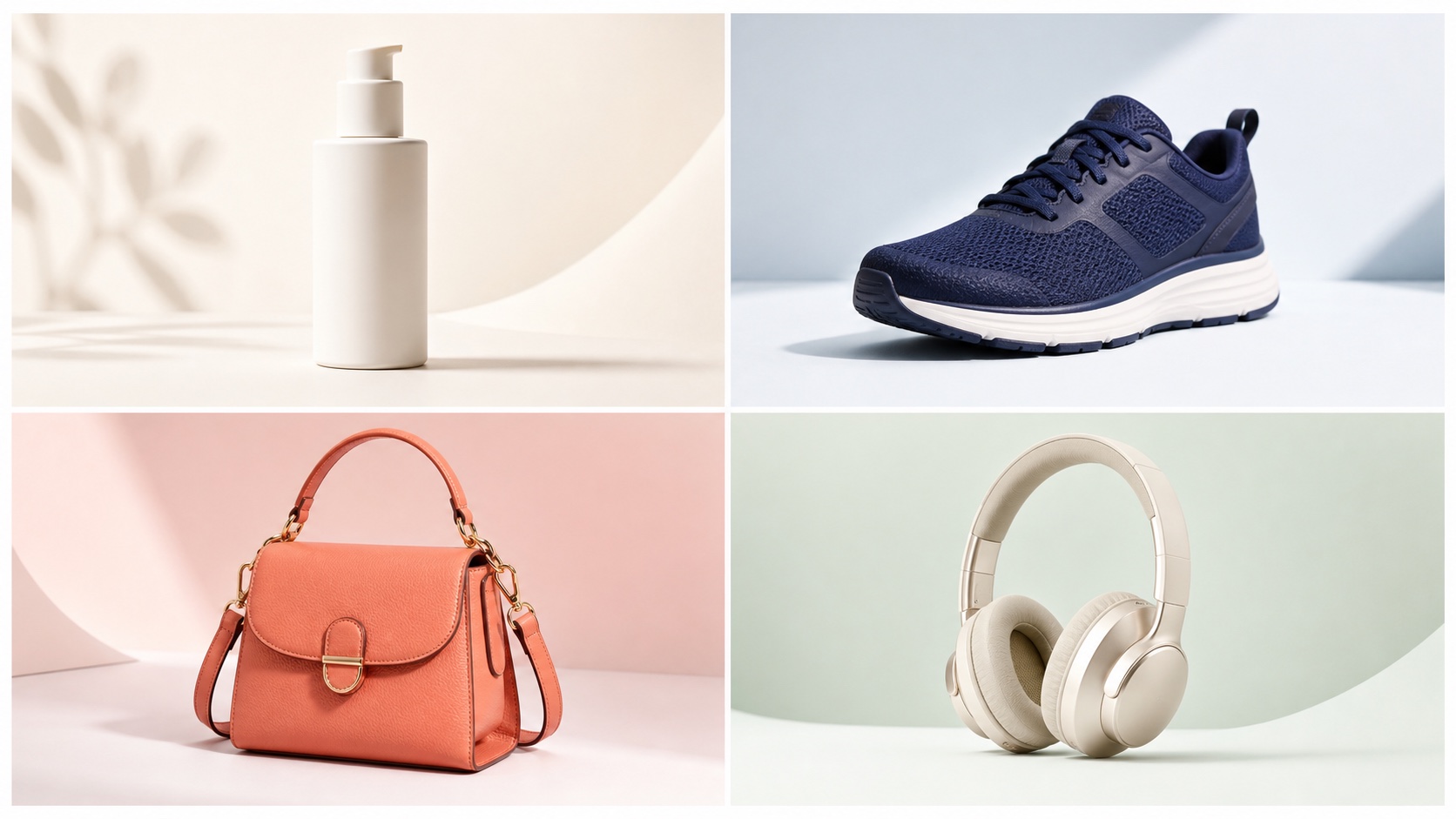
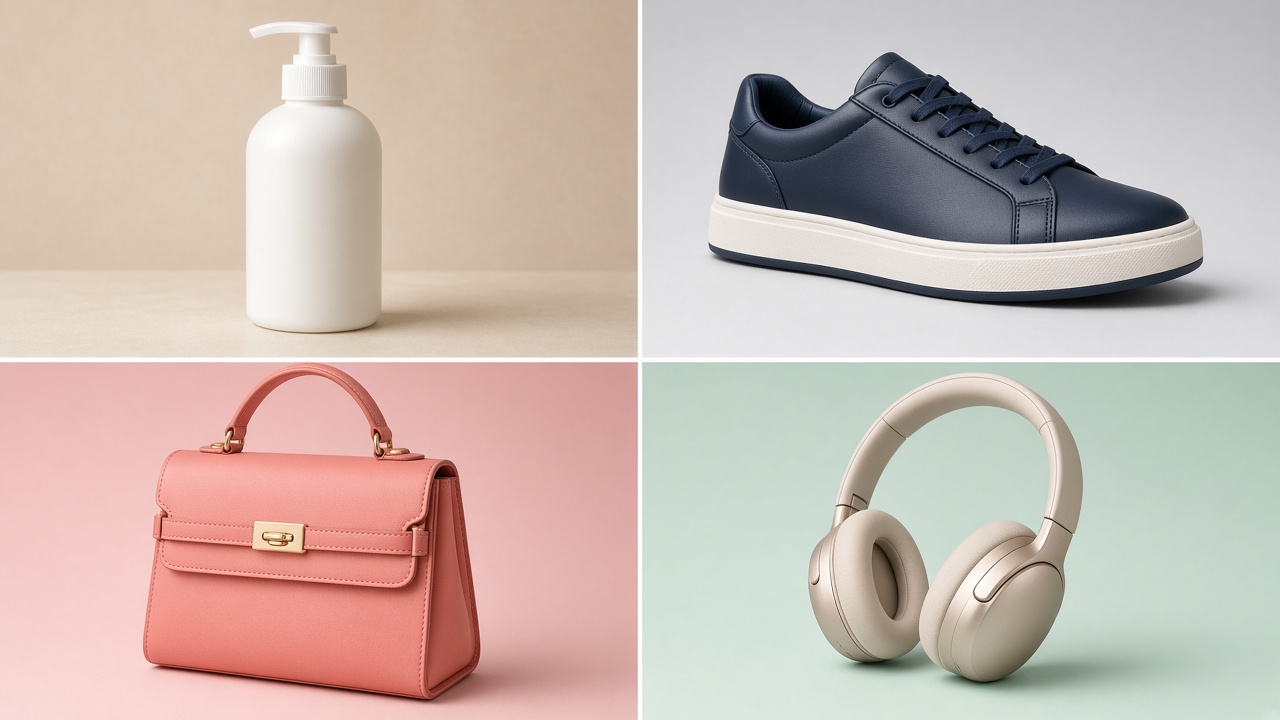
Crop product photos to a consistent storefront ratio, remove backgrounds, enhance details, or edit scenes across a collection.
Publishers and creators
Turn article ideas, episode topics, or content briefs into a queue of featured-image concepts.

POD and game teams
Explore design directions, item concepts, and visual themes before selecting assets for refinement.
How to use the bulk AI image generator
Move from a prompt list or image collection to an organized result set without repeating the same setup twenty times. All of the bulk pic tools follow the same three steps, whether you are generating new images or processing uploads.
Add prompts or images
Enter one prompt per line, import a CSV prompt column, or upload up to 20 source images.
Review shared settings
Choose a generation model or one of five image tools, including Bulk Crop Photos, then confirm the item count and full estimated credit cost.
Run and export
Follow the live queue, retry an individual failure, download one image, or export completed results as a ZIP.
Bulk crop photos with one shared setup
Prepare up to 20 photos for a storefront, marketplace, social channel, or content library without cropping every file separately. As a batch image cropper it sets the output size once, shows the crop frame on every image, and lets you nudge individual positions before export. The same shared setup is how you mass crop image sets to one aspect ratio, or bulk change image size for a platform that enforces exact dimensions. Cropping is the most used of the bulk pic tools, and it shares its controls with the other four.
Set width, height, and aspect ratio
Enter the target width and height and ProRemover reduces them to the matching aspect ratio automatically, such as 300 × 400 becoming 3:4.
Drag each crop into position
Every image displays a crop frame with a rule-of-thirds guide. Drag the frame to keep the important subject inside the final composition.
Use focus detection or manual control
Start from automatic focus detection for the batch, then fine-tune the crop position on any image that needs a different focal point.
Choose format and output quality
Keep the original format or export JPEG or WebP, then adjust the quality preset before downloading individual files or a ZIP.
Five practical batch image tools
Bulk crop photos, bulk remove background layers, run a mass image enhancer pass, expand the canvas, or apply one shared AI edit across every upload.
CSV prompt import
Read a named prompt column or the first column, while respecting quoted commas and multiline CSV values.
A controlled queue instead of twenty simultaneous requests
The bulk image generator AI workbench processes up to three items at a time. As one item finishes, the next queued item begins. This keeps progress understandable and avoids launching all 20 provider requests in one burst. Every item retains its status, result, and error message; asynchronous provider tasks also retain their task IDs.
Three active items
The queue fills available processing slots while preserving the original input order in the result grid.
Refresh recovery
Saved task IDs allow supported asynchronous provider tasks to continue status checks after a page refresh.
Independent failures
One failed generation is marked clearly without stopping successful or queued items.
Item-level recovery
A failed task can be retried on its own instead of repeating every successful image.
Know the batch cost before any task starts
ProRemover displays the item count, per-item cost, estimated total, and current balance before launch. The full estimate is checked first, so the bulk pic tools never start a run you cannot pay for. Image generation uses cloud AI providers, so uploaded images are transmitted for the requested processing and are not described as local-only browser edits.
Generation estimate
Text-to-image tasks currently use 2 credits per item, multiplied by the number of prompts.
Editing estimate
The five upload batch tools currently reserve 5 credits per image, matching the existing single-image tool price.
Failure refunds
Provider submission failures and confirmed terminal task failures use the existing server refund lifecycle.
No hidden prompt tracking
Product analytics records batch counts and status events without sending prompt text or image URLs.
Bulk pic tools FAQ
Answers about prompt import, batch editing, credits, failures, and downloads.
Getting results out of the workspace
Download any single result
Each completed item has its own download control, so you can take the images you needed and leave the rest.
ZIP the successful set
One archive collects every item that finished, which is fastest when a whole batch is destined for the same upload form.
Partial batches still deliver
If two items of twenty fail, the other eighteen remain downloadable individually and in the ZIP.
Originals stay untouched
Uploads are never overwritten. Results are separate files, so a disappointing pass costs credits but not the source image.
AI image editor
Edit one image with a natural-language prompt.
Image enhancer
Upscale and sharpen a single photo with per-image control the batch pass does not offer.
Background remover
Create transparent or cleaner product and portrait backgrounds.
AI video object remover
Describe unwanted elements in short videos.
Prepare your first image batch
Add a prompt list or upload a group of images, review the total cost, and manage every result from one queue.