
Logo Background Remover Online
Use ProRemover's logo background remover to remove white, black, or solid backgrounds from logo files and create a clean transparent logo cutout online.
Upload a logo, preview the transparent result, and prepare brand assets for websites, presentations, product mockups, and social media designs.
Your images are processed securely and privately.
Only edit logos you own or have permission to modify.
AI logo background remover for brand assets
Website headers
Use a cleaner logo on navigation bars, footers, landing pages, and app screens.
Pitch decks and documents
Place a logo on slides, invoices, PDFs, proposals, and one-pagers without an unwanted box.
Product mockups
Create cleaner logo placements for packaging previews, ecommerce images, and campaign mockups.
Social media assets
Prepare logos for profile images, banners, thumbnails, and branded post templates.
Use a clean logo in website headers
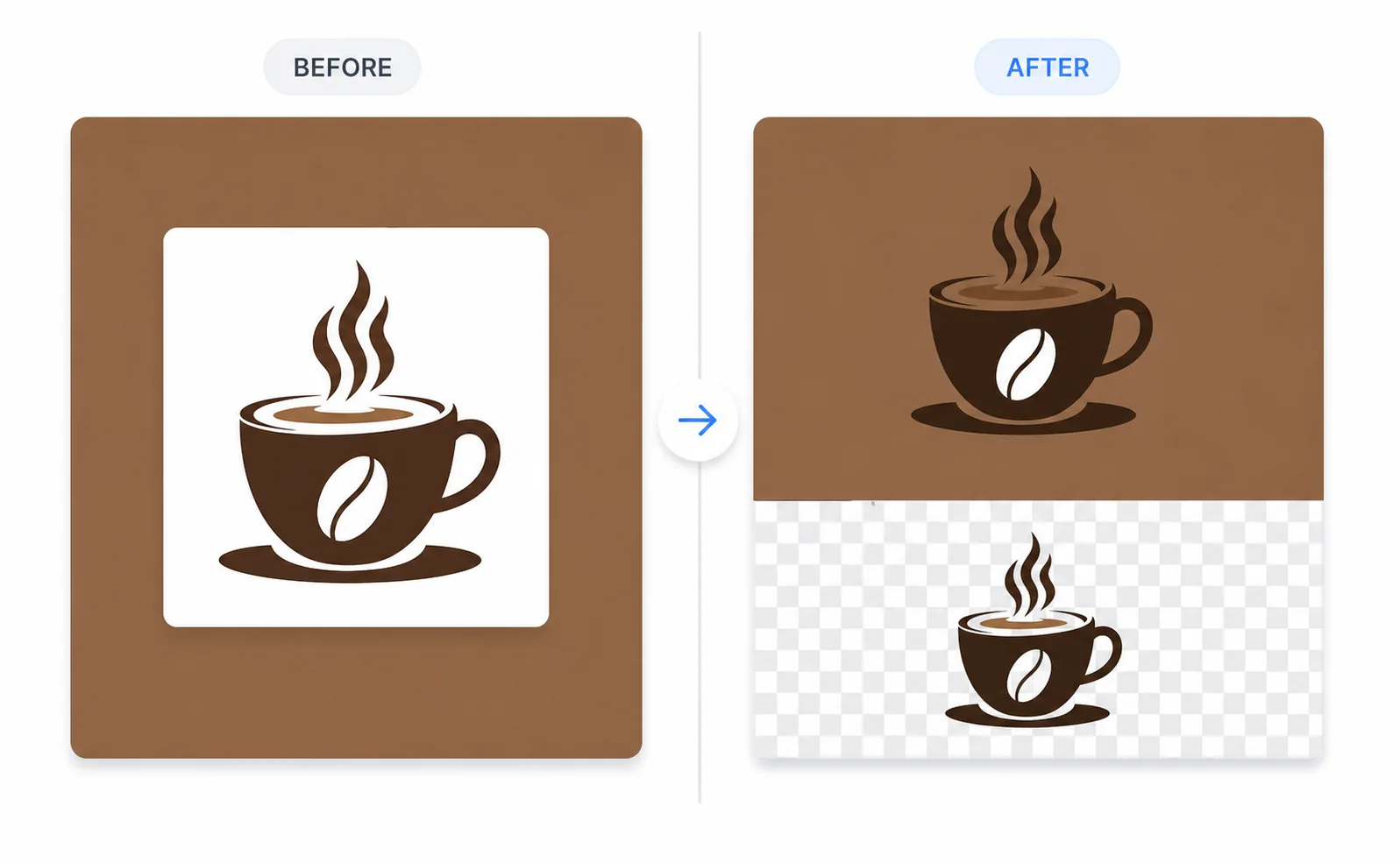
Website headers are one of the first places where a boxed logo background looks wrong. A logo exported on a white square can clash with a blue, dark, gradient, or transparent navigation bar. Use the logo background remover to keep the logo itself and remove only the image background, so the mark sits naturally on headers, footers, landing pages, and app screens.
Keep the logo visible
The goal is not to erase the logo. ProRemover removes the surrounding box while preserving the mark.
Fit colored navigation bars
Transparent-style logo cutouts work better on blue, dark, or branded header backgrounds.
Place logos into pitch decks and documents
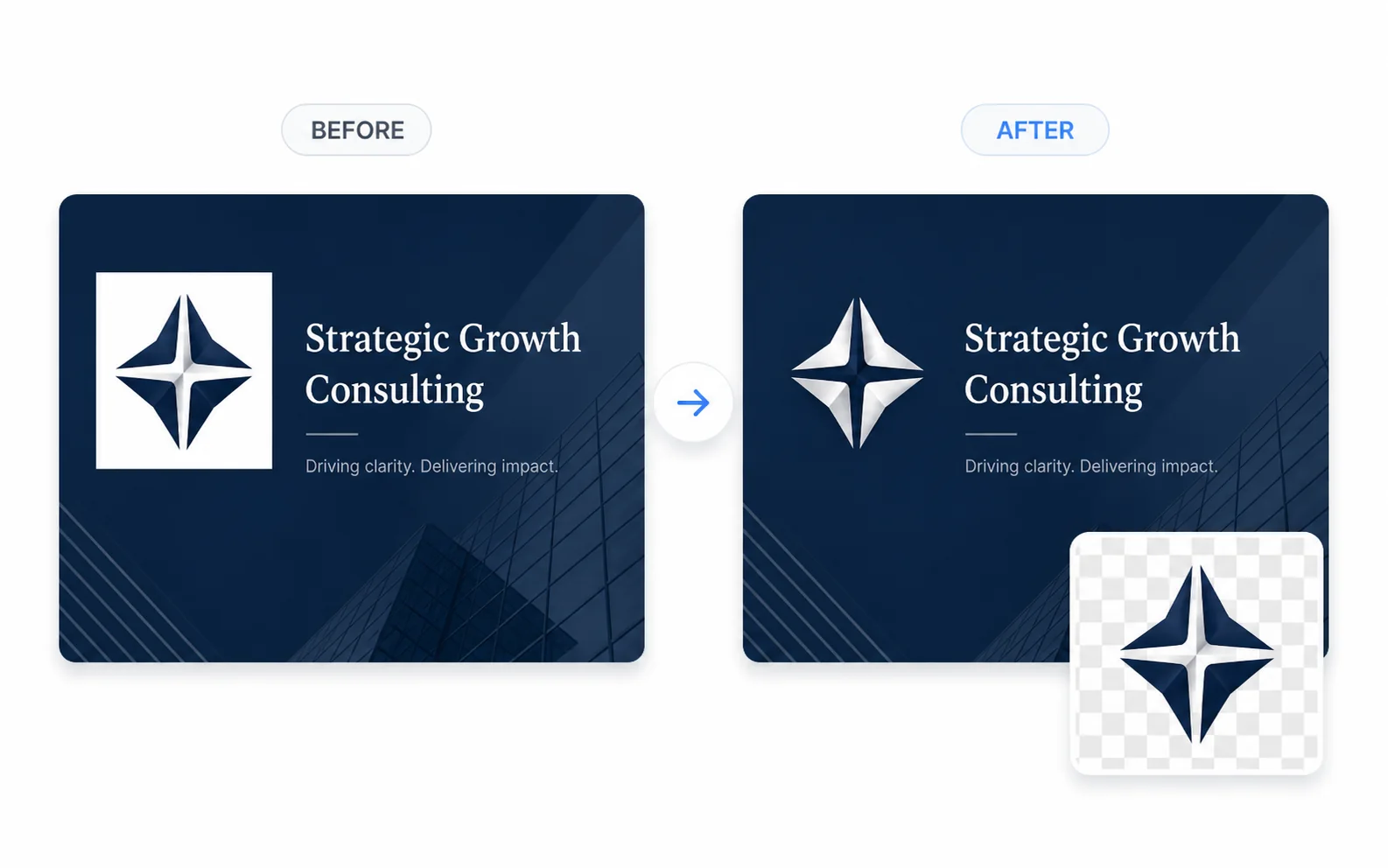
Slides, PDFs, invoices, proposals, and one-pagers often use colored blocks or clean white space. If the logo file still has a background rectangle, it can look pasted on instead of designed. Remove the logo background before placing the file into a deck or document so your brand mark feels integrated with the layout.
Cleaner presentation layouts
Avoid white boxes on colored slides, cover pages, and branded proposal templates.
Reusable brand assets
Prepare a logo cutout that can be reused across slides, PDFs, and documents.
Apply logos to product mockups without a white box
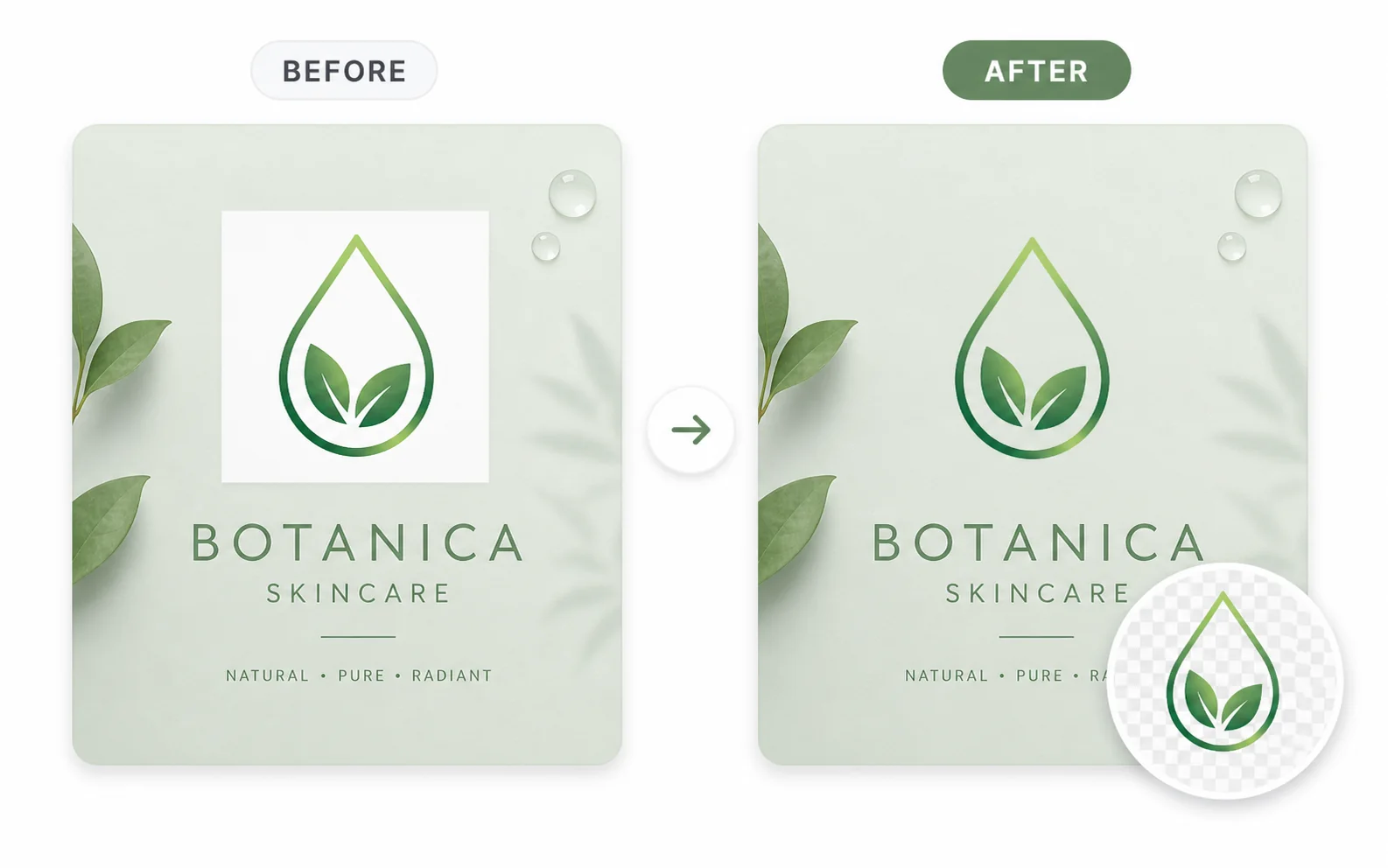
Product mockups, ecommerce images, packaging previews, and campaign visuals need the logo to feel like part of the product. When a logo is pasted with its original background, the square edge distracts from the mockup. Use ProRemover to remove the logo image background and keep a clean logo placement for packaging, jars, boxes, catalogs, and ads.
Packaging previews
Show the logo directly on boxes, jars, labels, and product cards without a pasted-on rectangle.
Campaign visuals
Use cleaner logo placements in ecommerce images, ads, and product launch assets.
How to remove background from a logo
You do not need to redraw the logo manually. Start with the cleanest source file you have, then preview the result before exporting or using it in a commercial project.
Upload your logo file
Choose a JPG, PNG, or WEBP logo with a clear mark and a simple background.
Run logo background removal
Use the logo background remover to separate the mark from the surrounding color.
Preview the transparent result
Check edges, small text, icons, and fine details before downloading or using the image.
Logo background remover vs general background remover
Use this page for logos
Best for white-background logos, black-background logos, solid backgrounds, and transparent logo cutouts.
Use the general tool for photos
Use the general background remover for portraits, products, and images with non-logo subjects.
Use pricing for larger workflows
HD export, larger files, faster processing, and higher limits may require credits or a paid plan.
When logo background removal works best
For the cleanest result, upload the highest-resolution logo file available. Avoid screenshots when you have the original export. Make sure small text is readable, the logo is not heavily compressed, and the background color is not too close to the logo colors. After processing, inspect the edges before using the result in production.
Clear edges
Sharp logo edges help AI separate the mark from the background more accurately.
Simple backgrounds
Plain white, black, gray, or solid-color backgrounds usually work better than patterns.
Permission to edit
Only remove backgrounds from logos you own, manage, or have permission to modify.
Logo background remover FAQ
Make your logo background transparent
Use the logo background remover to clean up a logo file, preview the transparent result, and prepare a reusable brand asset online.
Prepare logo assets for social profiles and posts
Social banners, profile images, thumbnails, and branded post templates often use gradients or colored backgrounds. A logo with a white background block can make those assets look unfinished. Remove the background from the logo file first, then place the clean logo across profile headers, post templates, and social media graphics.
Profile and banner assets
Use a logo cutout on avatars, cover images, and account branding surfaces.
Branded post templates
Place the same transparent-style logo into thumbnails, announcements, and campaign posts.